Ubiquiti Fiber WiFi User Guide
Getting to know your Ubiquiti Fiber WiFi
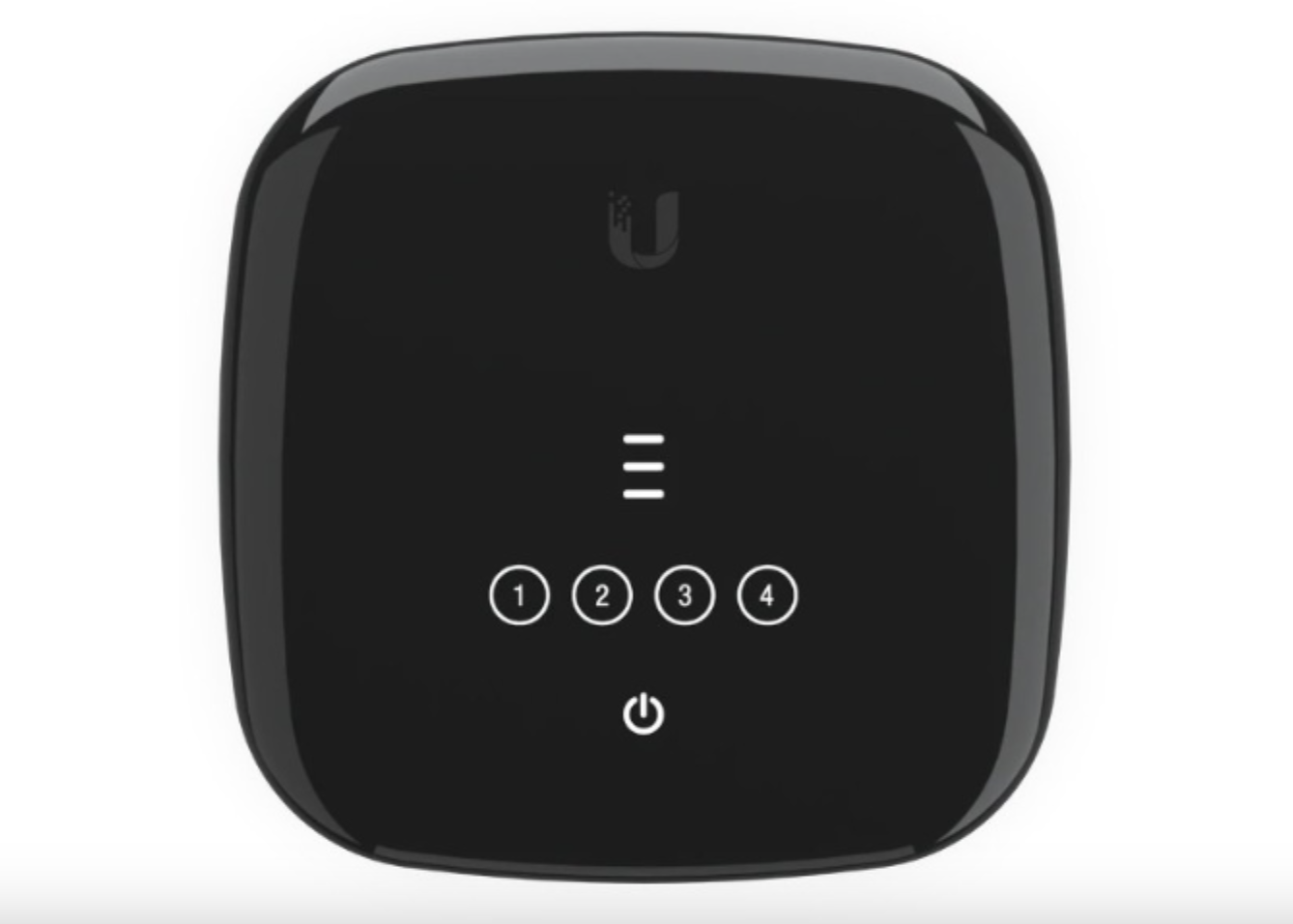
Access point top:
Access point side view:
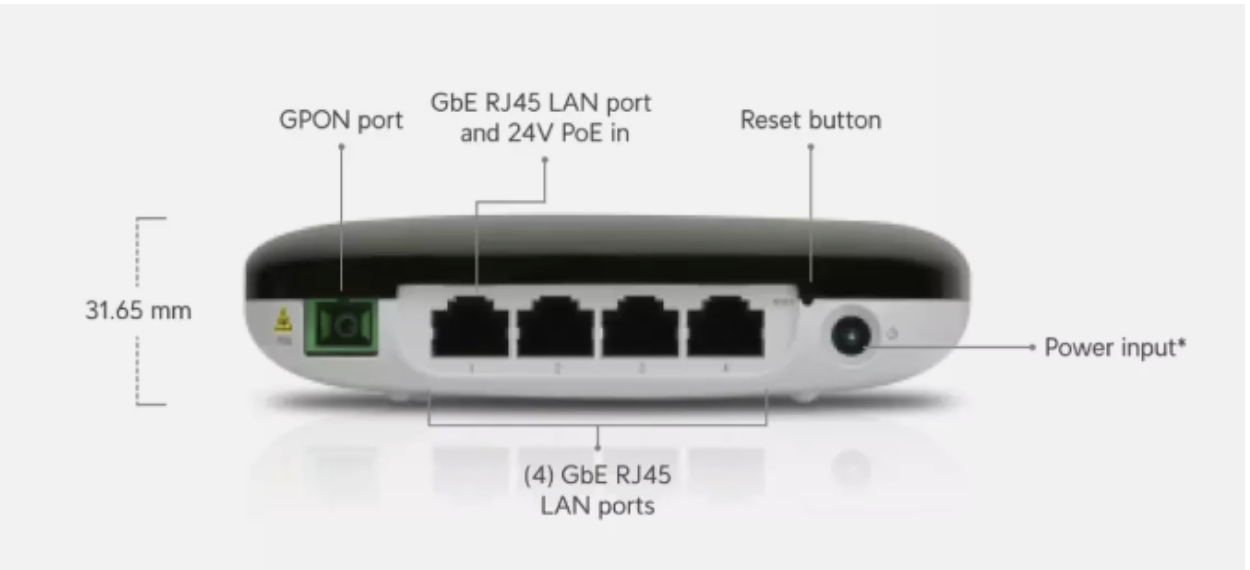
Access point side view
Connecting to the Internet
To connect your computer to the internet, you may use wireless internet or a modem using an ethernet cable.
Find the internet icon in the lower right corner of your screen (if using a PC).
Click on the internet icon to see the list of available networks. These are the various networks available in your area.
Click on the name of your network (provided with your Fiber WiFi) and enter the password when prompted.
Once connected, use an internet browser like Google Chrome.
Troubleshooting
If you are having trouble connecting to the internet, try some of these troubleshooting tips:
Unplug the Fiber WiFi from the power source and leave it off for 3 minutes. Plug in the Fiber WiFi again and wait 2-3 minutes for it to reboot. Using any device, check for an internet connection. If it connects, you can reconnect any cables to the lower sockets of the Fiber WiFi.
Repower all range extenders.
If necessary, conduct a speed test, ideally with a device directly connected to the Fiber WiFi, by visiting www.speedtest.net. If you have speeds lower than 30/30, please contact our Support Team.
Related Articles
Baicells User Guide
Getting to Know Your Baicells Modem Parts & Materials Your box will include one Baicells Atom ID06 Modem and one DC-5V Power Adapter. Description The LED indicators on the front of the modem provide operational status information. Refer to the table ...Matlock Fiber WiFi User Guide + Troubleshooting
BTI CR650 Indoor WiFi Router User Guide
Getting to know your BTI CR650 Indoor WiFi Router Introduction: The CR650 is a premium indoor WiFi router designed for 802.11a/b/g/n/ac dual-band WiFi access. It provides optimized high-throughput data and a wide area coverage network for ...Inseego Hotspot - Basic User Guide
The Inseego Hotspot is a versatile device designed to provide reliable mobile internet access. This basic user guide outlines key features and instructions to help you get started. 1. What's Included Inseego Hotspot Device Charging Cable Quick Start ...JEXtream User Guide
Welcome to your JEXtream 5G Mobile Hotspot, Model RG2100. This device allows you to connect multiple devices to a fast and reliable 5G network, providing seamless internet access wherever you go. Package Contents JEXtream 5G Mobile Hotspot (Model: ...