BTI CPX60P Indoor CPE User Guide
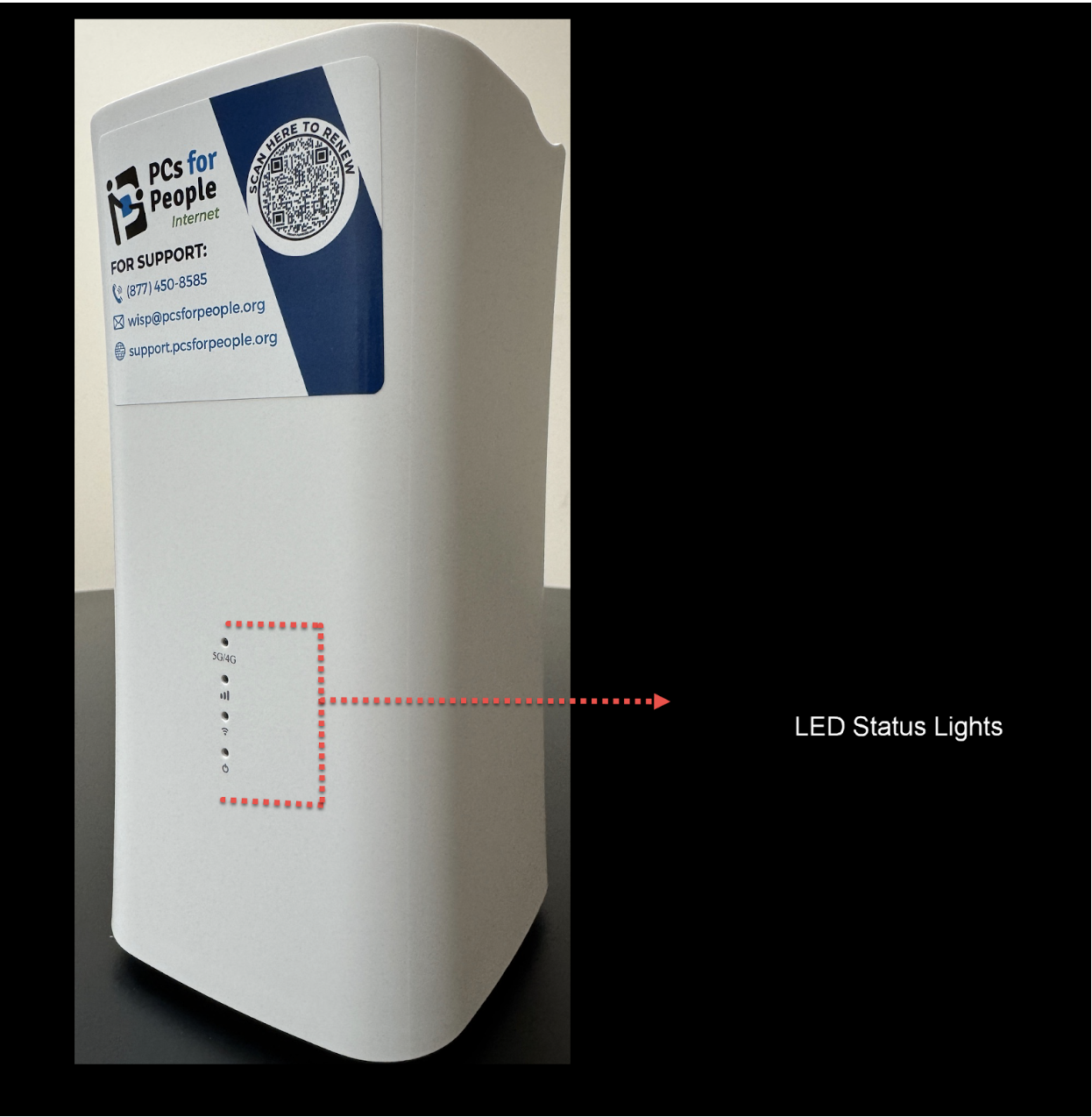
Access point front:
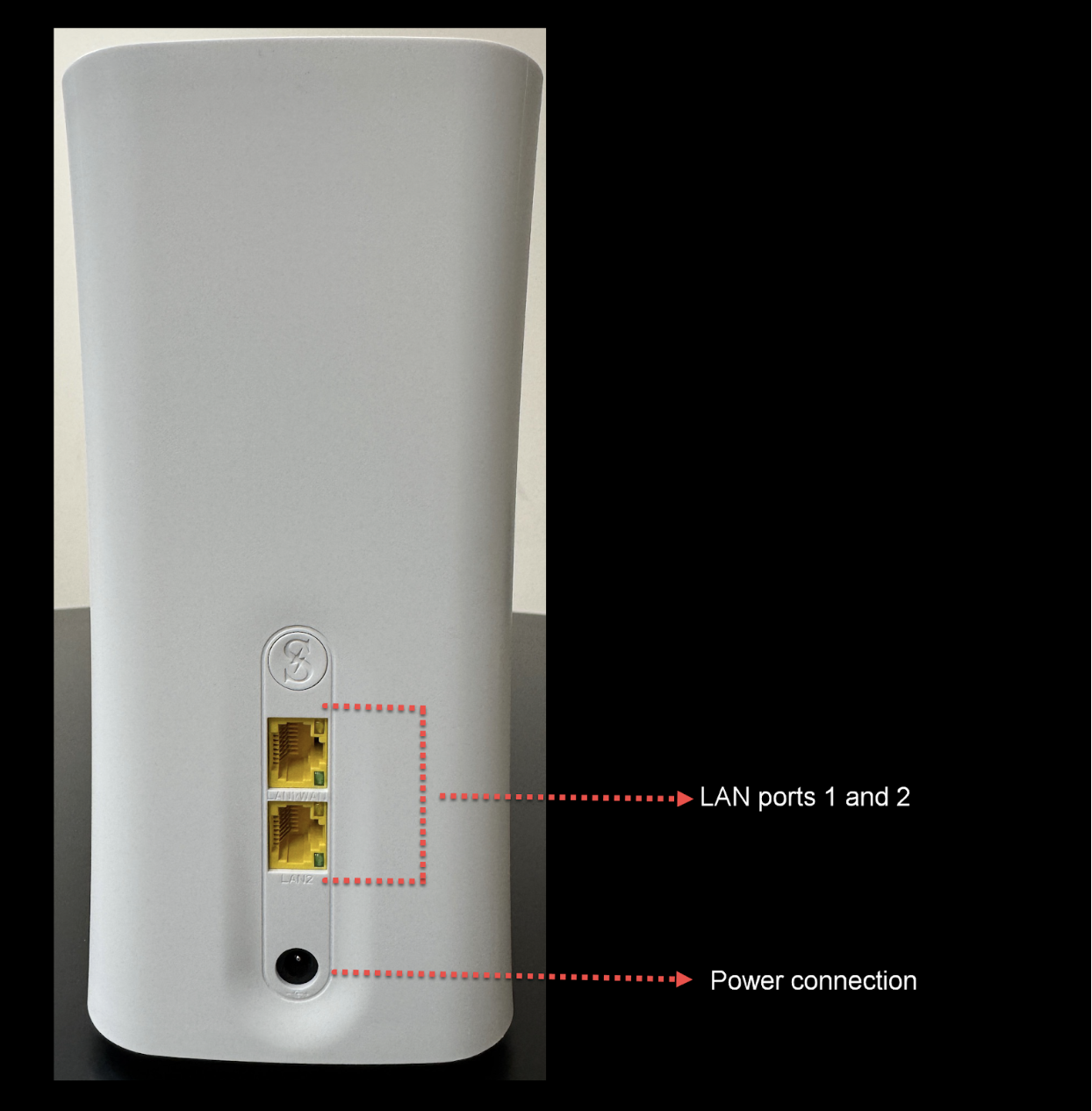
Access point back:
Introduction
CPX60P aims to enable global carriers and partners to experience the most advanced 5G experience. With the CPX60P, users can enjoy wireless broadband without limitation by cable or fiber and ultrafast internet service at optical fiber rates in different scenarios such as home, office, and SOHO environments.
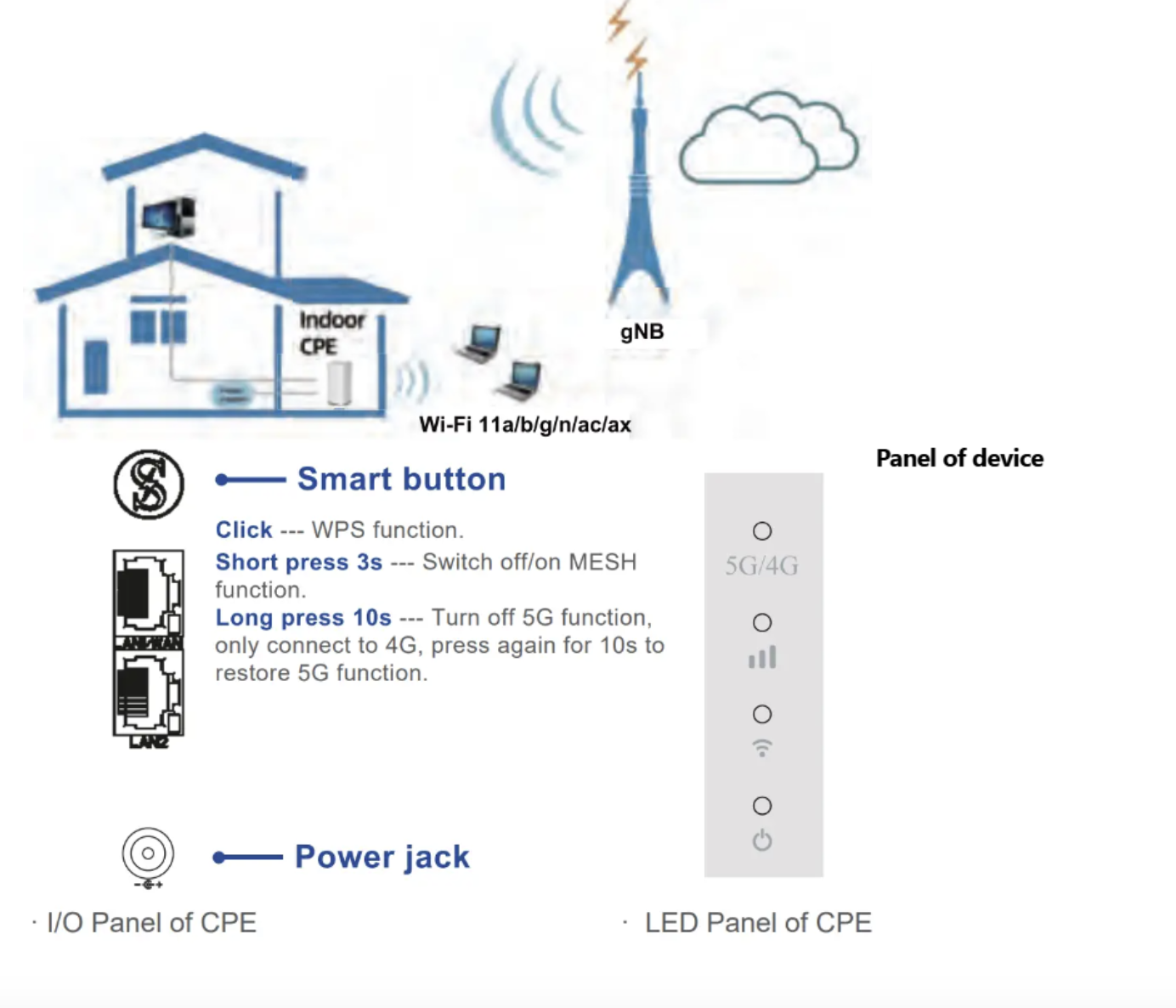
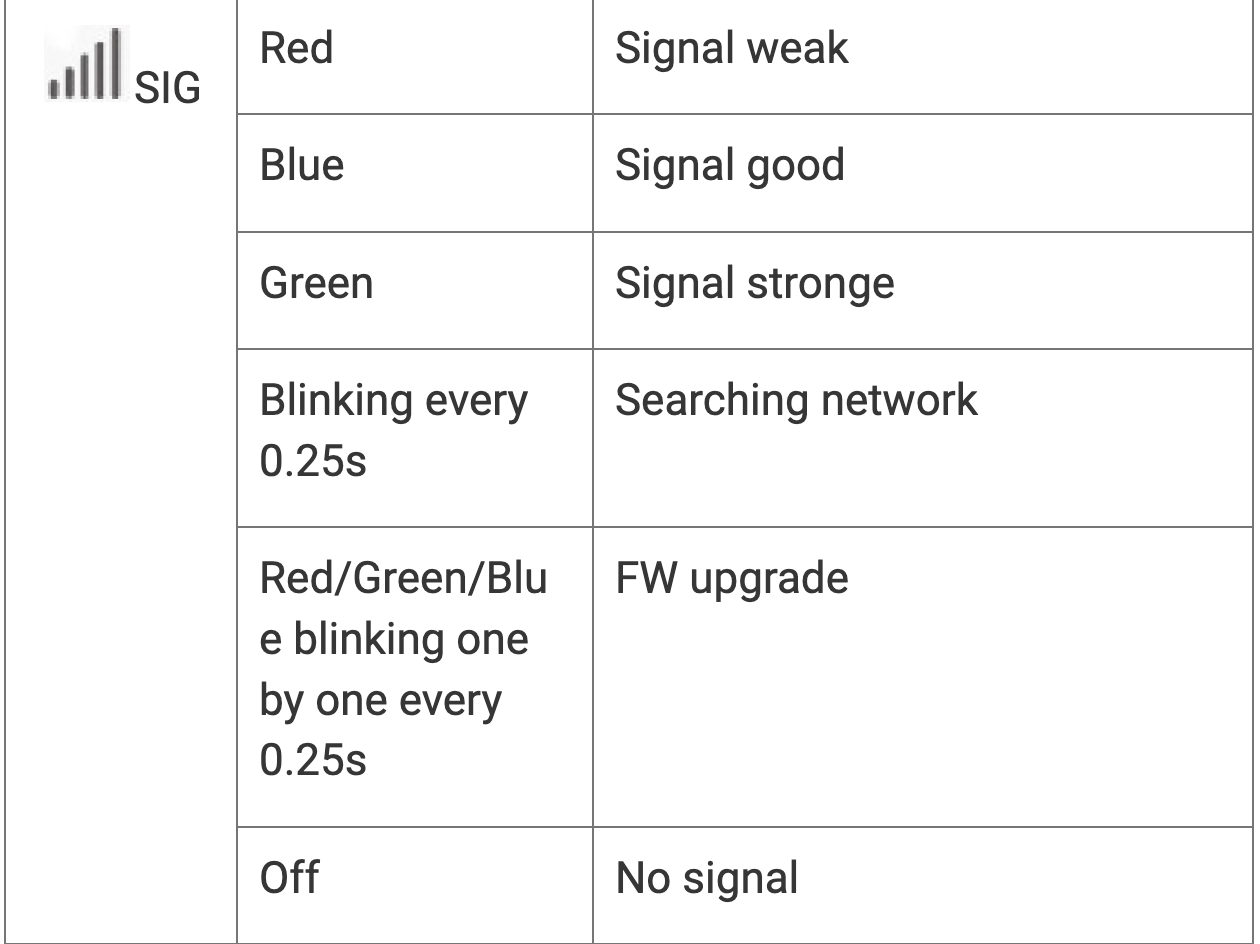
Connect the supplied power adapter to the CPE. Connect the other devices. Connect your computer or classic Switch via an Ethernet cable to the LAN port. You may adjust the CPE's current position and direction for a better radio signal. Please refer to the SIG LED indicator to determine whether the CPE is receiving a strong signal.

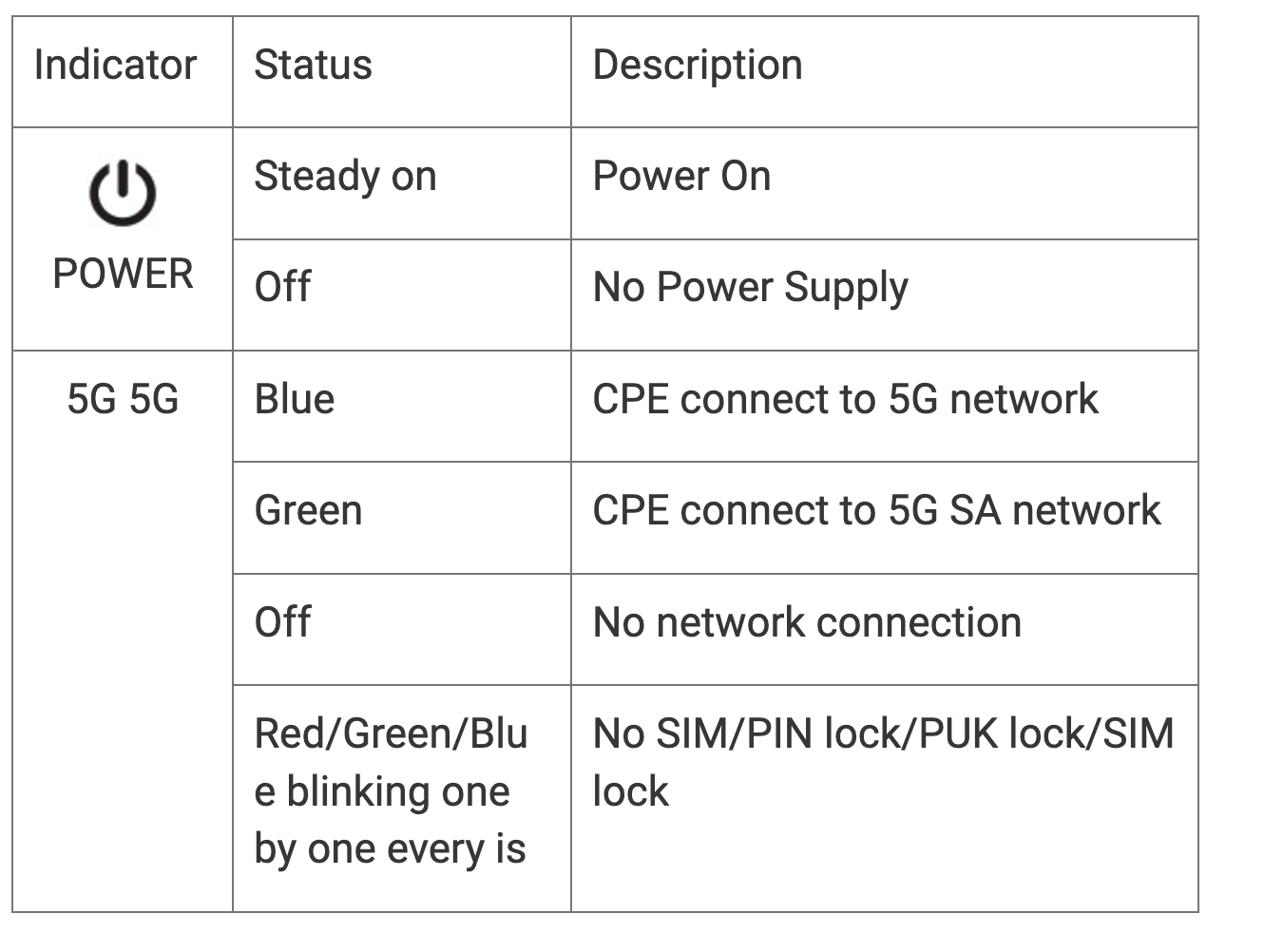
LED behavior: When the CPE is set up, the LED will display the following behavior:
The POWER indicator does not turn on.
Make sure that the power cable is connected properly and the CPE is powered on.
Make sure that the power adapter is compatible with the CPE. Fails to log in to the web management page.
Make sure that the CPE is started.
Verify that the CPE is correctly connected to the computer through a network cable. The CPE fails to search for the wireless network.
Check that the power adapter is connected properly.
Check that the CPE is placed in an open area far away from obstructions, such as concrete or wooden walls.
Check that the CPE is placed far away from household electrical appliances that generate strong electromagnetic field, such as microwave ovens, refrigerators, and satellite dishes. The power adapter of the CPE is overheated.
After being used for a long time, the CPE will overheat. Therefore, power off the CPE when you are not using it.
Check that the CPE is properly ventilated and shielded from direct sunlight. The parameters are restored to default values.
If the CPE is powered off unexpectedly while configuring, the parameters may be restored to the default settings.
After configuring the parameters, download the configuration file to quickly restore the CPE to the desired settings. If the problem persists, please contact authorized local service suppliers. This product has reached the standard of shipment inspection.don't hesitate to get in touch with authorized local service suppliers
This equipment has been tested and found to comply with the limits for a Class B digital device, pursuant to part 15 of the FCC Rules. These limits are designed to provide reasonable protection against harmful interference in a residential installation. This equipment generates, uses, and can radiate radio frequency energy and, if not installed and used in accordance with the instructions, may cause harmful interference to radio communications. However, there is no guarantee that interference will not occur in a particular installation. If this equipment does cause harmful interference to radio or television reception, which can be determined by turning the equipment off and on, the user is encouraged to try to correct the interference by one or more of the following measures:
Reorient or relocate the receiving antenna.
Increase the separation between the equipment and the receiver.
Connect the equipment to an outlet on a circuit different from that to which the receiver is connected.
Consult the dealer or an experienced radio/TV technician for help.
Connecting to the Internet
To connect your computer to the Internet, you may use wireless Internet or a modem connected to the Internet using an ethernet cable.
You can find the internet icon in the lower right corner of your screen (if using a PC).
Click on the internet icon to see the list of available networks. These are the various networks available in your area.
Click on the name of your network (provided with your CPX60P) and enter the password when prompted.
Once connected, use an internet browser like Google Chrome.
Troubleshooting
If you are having trouble connecting to the internet, try some of these troubleshooting tips:
Unplug the CPX60P from the power source and leave it off for 3 minutes. Plug in the CPX60P again and wait 2-3 minutes for it to reboot. Using any device, check for an internet connection. If it connects, you can reconnect any cables to the lower sockets of the CPX60P.
Repower all range extenders.
If necessary, conduct a speed test, ideally with a device directly connected to the CPX60P, by visiting www.speedtest.net.
Keep the device near a window with the back end of the CPX60P facing toward the tower.
Related Articles
BTI CPX80P Outdoor CPE User Guide
Getting to know your BTI CPX80P Outdoor CPE Access point top: Note all 4 status LEDs should be lit up when connected to the tower. Access point side view CR650 indoor WiFi Router CR650 indoor WiFi Router back side How Does it Work How does it work ...BTI CR650 Indoor WiFi Router User Guide
Getting to know your BTI CR650 Indoor WiFi Router Introduction: The CR650 is a premium indoor WiFi router designed for 802.11a/b/g/n/ac dual-band WiFi access. It provides optimized high-throughput data and a wide area coverage network for ...Baicells User Guide
Getting to Know Your Baicells Modem Parts & Materials Your box will include one Baicells Atom ID06 Modem and one DC-5V Power Adapter. Description The LED indicators on the front of the modem provide operational status information. Refer to the table ...Inseego Hotspot - Basic User Guide
The Inseego Hotspot is a versatile device designed to provide reliable mobile internet access. This basic user guide outlines key features and instructions to help you get started. 1. What's Included Inseego Hotspot Device Charging Cable Quick Start ...JEXtream User Guide
Welcome to your JEXtream 5G Mobile Hotspot, Model RG2100. This device allows you to connect multiple devices to a fast and reliable 5G network, providing seamless internet access wherever you go. Package Contents JEXtream 5G Mobile Hotspot (Model: ...